Lobby
A short advert, then you play.
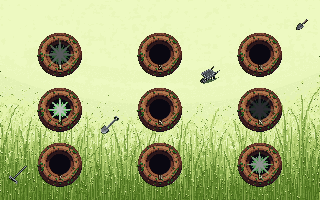
Hit the moles as they pop out of the holes. The field changes as the run goes on. Later stages bring other moles: a gold mole pays double, a mole in a helmet takes two hits, a mole in a red headband ducks back fast, and twins pop up in pairs. Never hit the white rabbit. When 6 moles get away, your run is over. The moles come faster and in greater numbers as the run goes on. On a phone or tablet, tap a mole. On a computer, click a mole, or press the key shown on its hole.
Every mole you hit pays, and hitting one early in its window pays about twice as much as hitting it late, so speed is the score. Hits pay more in the later, faster part of the run. Missing — swinging at a hole with nothing in it — costs you points, and so does letting a mole drop back down un-hit. Your score can never go negative, but a wild run still scores far less than a patient one. Every 10th hit in a row pays 500 more; a miss, an escape or a hit on the rabbit starts the count again. Hitting the rabbit costs points. Clearing a stage pays a bonus. When too many moles get away, the run is over with what you scored. Restarting or reloading mid-run ends it, and a spent entry does not come back. Leaving the tab pauses you; the controls come back released.